

How to add an admin to your Microsoft 365 tenant
When WaTo (or any IT provider) starts looking after your Microsoft 365, we need our own administrator account in your tenant. It takes about five minutes, costs nothing, and you stay in control: you can switch it off or delete it whenever you like. This page walks through the exact screens, and the same steps work for Office 365 and Microsoft 365 Business plans.
Last updated
The short answer
Sign in to admin.microsoft.com as an existing Global Administrator, go to Users, Active users, Add a user. Give the account a name, choose the domain that ends in .onmicrosoft.com, set a temporary password, choose Create user without product license, then under Optional settings open Roles, pick Admin center access and tick Global Administrator. Finish adding, then send the username and temporary password to your provider by two different channels.
What we ask for, and why
Four things: a separate account rather than one of your staff logins, the .onmicrosoft.com address rather than your business domain (the account never sends email, so it does not need one of your addresses), no licence (an administrator account does not need a mailbox or Office apps, so it should not cost you a seat), and the Global Administrator role (we need to see licences, email, security and devices to do the work; it can be narrowed later once we know what the ongoing job needs). You set a temporary password; we change it and turn on multi-factor authentication the moment we first sign in.
Details to use
First name and last name
First name WaTo, last name Consulting. The display name fills itself in as WaTo Consulting.
Username
wato, with the domain set to the one ending in .onmicrosoft.com. The full login looks like wato@yourbusiness.onmicrosoft.com.
Licence
Create user without product license. Microsoft marks this as not recommended because the account cannot use email or Office apps. That is exactly what we want.
Role
Admin center access, then tick Global Administrator.
Password
A temporary password you make up. Leave the box ticked that makes the user change it at first sign-in. We reset it and add multi-factor authentication straight away.
Handing it over
Email us the username, then text or phone us the password. Never put both in the same message.
Who this is for
- Businesses moving their Microsoft 365 support to WaTo and asked for admin access.
- Owners who set up Microsoft 365 themselves and are the only administrator.
- Anyone giving a new IT provider, accountant's IT team or contractor access without handing over their own login.
Before you start
You need to be signed in as a Global Administrator already. If you bought the Microsoft 365 subscription for the business, that is you. If someone else set it up (a previous IT company, a staff member who has left), you may need to get that access back first, which is a different job. If you are stuck at that point, call us and we will work out the recovery path with you.
Microsoft's own one-minute video covers the same thing with their screens: Assign admin roles in the Microsoft 365 admin center. Our steps below create a brand-new account rather than promoting an existing one, which keeps your own logins untouched.
Step by step
- Sign in to the admin centre. Go to admin.microsoft.com and sign in with your Global Administrator account. If the top of the page says Simplified view, select Add user and skip to step 3. If it says Dashboard view, carry on.

Dashboard view: Users is in the left menu and Add a user sits in the top bar. 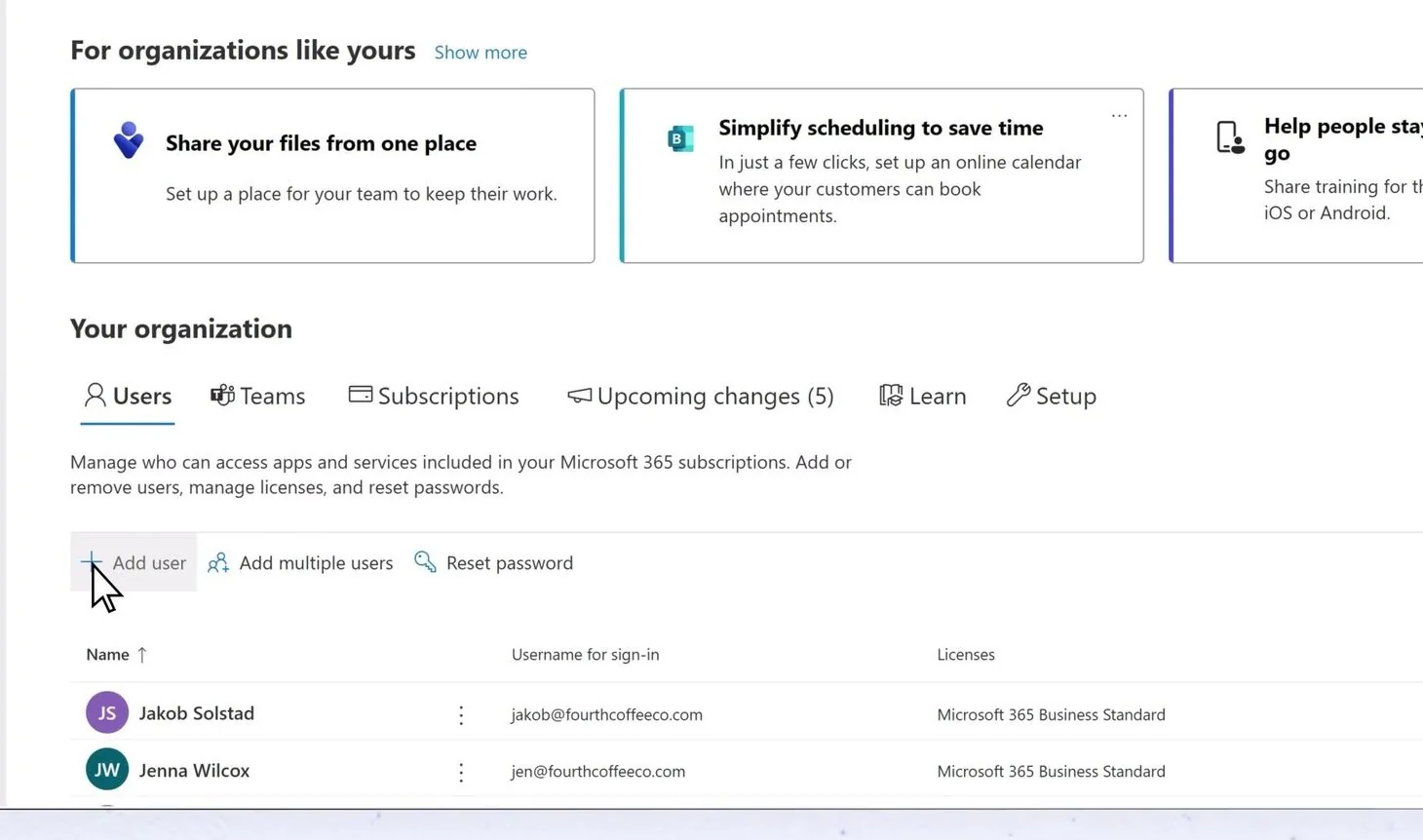
Simplified view: the Add user button is on the Users tab. - Open Active users. In the left menu choose Users, then Active users, then the Add a user button above the list.
- Set up the basics. First name WaTo, last name Consulting. Username wato. In the Domains drop-down pick the one ending in .onmicrosoft.com, not your business domain. Under Password settings untick Automatically create a password and type a temporary one of your own. Leave Require this user to change their password when they first sign in ticked. Select Next.
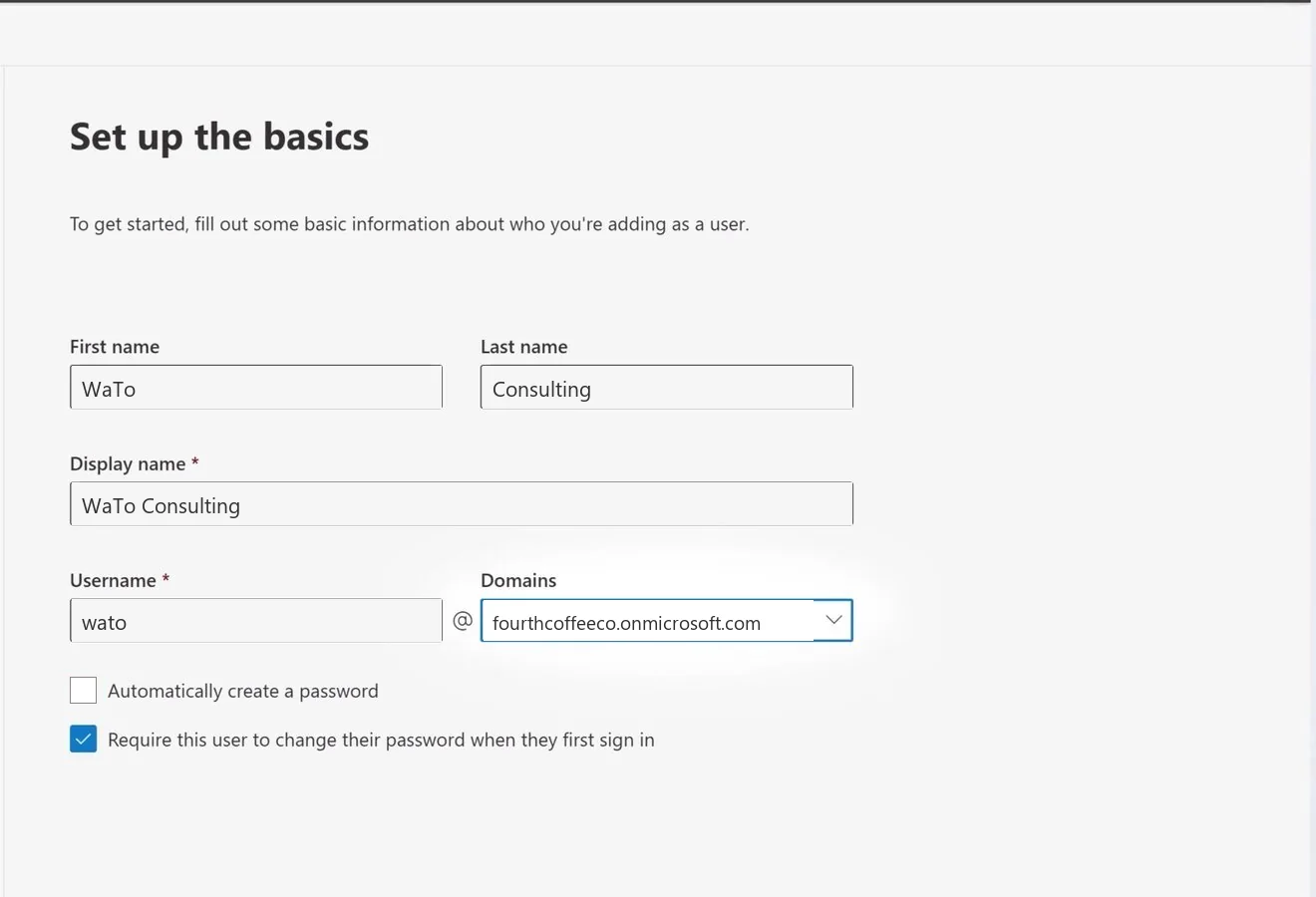
The Basics screen filled in: WaTo Consulting, username wato, the Domains drop-down on the .onmicrosoft.com entry, and Automatically create a password unticked. - Assign product licenses. Choose Create user without product license (not recommended). Ignore the warning: an administrator account does not need email or Office apps, and this way it does not use a paid seat. Select Next.

The bottom option selected: Create user without product license. - Optional settings: give the role. Expand Roles. Change from User (no admin center access) to Admin center access, then tick Global Administrator. If you cannot see it in the short list, select Show all by category. Select Next.

Roles expanded, Admin center access selected and Global Administrator ticked. - Review and finish. Check the summary shows no licence and the Global Administrator role, then select Finish adding. You do not need to print or email the credentials from this screen.

The summary before Finish adding: WaTo Consulting, custom password, no licence, Global Administrator. - Send us the details, split in two. Email the full username (wato@yourbusiness.onmicrosoft.com). Text or phone the temporary password. We will sign in, set our own password, turn on multi-factor authentication and confirm back to you.
Screens are from Microsoft’s own admin centre walkthrough videos and documentation, with the fields filled in to match this guide (the sample tenant is Microsoft’s Fourth Coffee). Microsoft moves things occasionally, so if a label differs slightly, the current Microsoft page has the latest screens.
What we do once we are in
First sign-in: we change the temporary password to one only we hold and register multi-factor authentication on it. The account is used only while we are working in your tenant, never for email or day-to-day sign-ins. If we later only need to do routine tasks, we can swap Global Administrator for a narrower role such as User Administrator or Exchange Administrator and tell you we have done it.
If you ever want it gone: Users, Active users, select WaTo Consulting, then Block sign-in (reversible) or Delete user. Nothing else in your tenant depends on it.
Already have a spare account you would rather use?
You can promote an existing unlicensed account instead of creating one. In Active users select the account, then under Roles choose Manage roles, pick Admin center access, tick Global Administrator and Save changes. We would still ask you to reset its password so we are not sharing one that someone else knows.


Admin access questions
Why the .onmicrosoft.com address instead of our own domain?
Every Microsoft 365 tenant has a built-in .onmicrosoft.com domain that cannot be removed or transferred. Putting the admin account there keeps it clearly separate from your staff, stops it needing a mailbox, and means it keeps working even if you change your business domain later.
Will this cost us a licence?
No. Choose Create user without product license and the account uses no paid seat. Administrator rights do not need a licence.
Why Global Administrator and not a smaller role?
Taking over support means checking licences, email flow, security settings, devices and billing, and those sit behind different roles. Global Administrator lets us do the first review without coming back to you for each one. Afterwards the account can be narrowed to the role the ongoing work needs.
Is it safe to give an outside company this access?
It is the normal way IT providers work in Microsoft 365, and the account is yours: you can block or delete it at any time. We protect it with a password only we know and multi-factor authentication, and we keep it off email so it cannot be phished through a mailbox.
What is the temporary password for?
It is only to get us through the first sign-in. Microsoft forces a change at that point, so the password you typed stops working as soon as we log in.
Could WaTo use partner access instead of an account?
Microsoft has a partner relationship model (granular delegated admin) for this. It suits larger providers with many tenants. For most small businesses a named account in your own tenant is simpler to see, audit and remove, so that is what we ask for.
How WaTo can help with this
Sources & references
WaTo Consulting. Last reviewed 2026-11-04. Review when Microsoft changes the Add a user screens or admin role names.

Moving your Microsoft 365 support to WaTo?
Create the account above, send us the two halves of the login, and we will take it from there.
Mon to Fri, 8:30am to 5pm